

Managing a growing Facebook page often feels like trying to flip twenty pancakes at once – Facebook Comment Keyword Auto Reply Meta Business Suite. You want everyone to feel seen and heard, but spending eight hours a day typing “Check your DMs!” or “Here is the link!” can quickly lead to burnout.
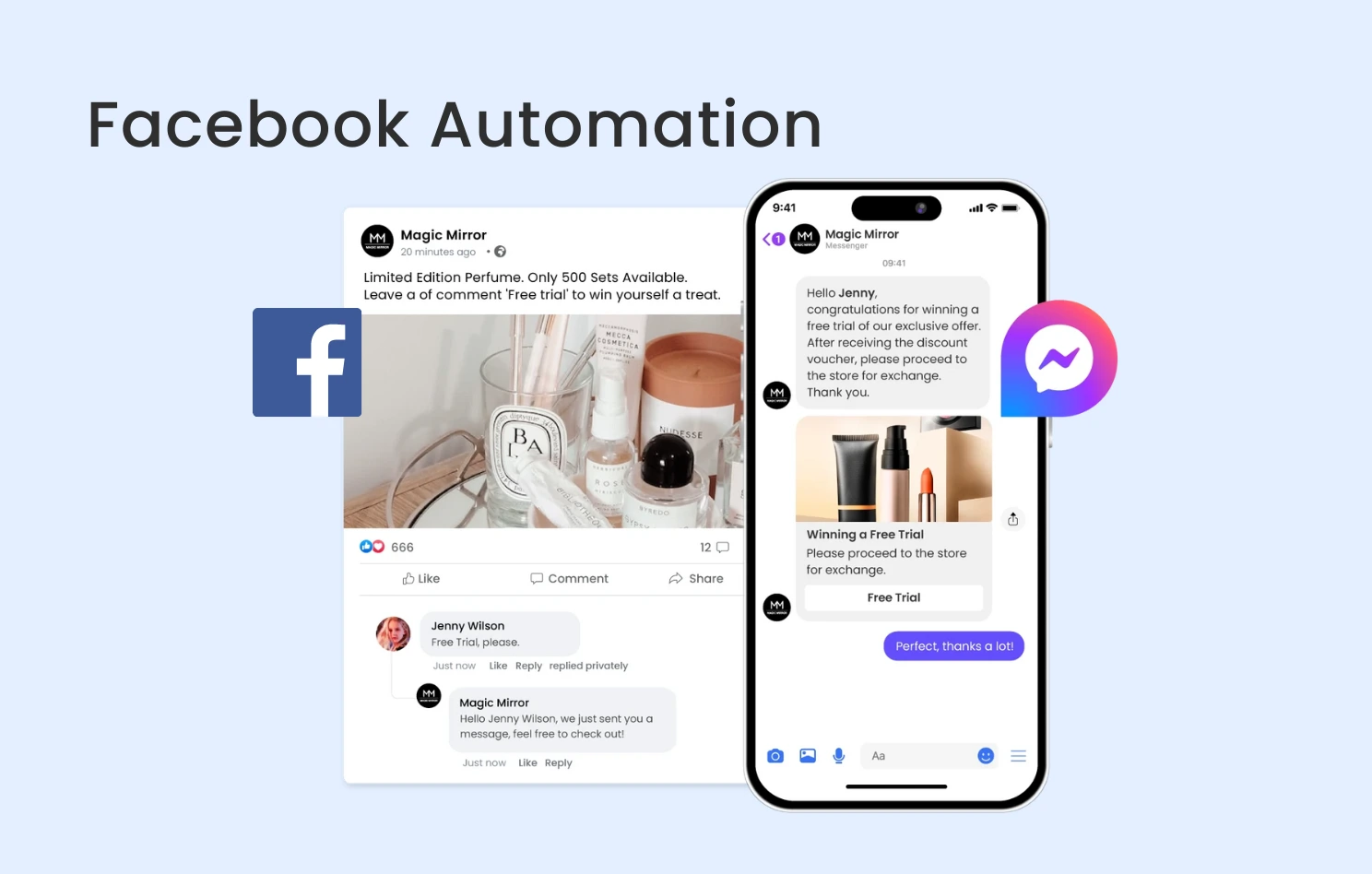
Image Source: https://blog.omnichat.ai/facebook-automation/
The good news is that you don’t have to handle every single greeting or inquiry manually. By using the Facebook comment keyword auto reply Meta Business Suite features, you can ensure your visitors get the information they need instantly, even while you’re sleeping or grabbing a coffee.
What is a Keyword Auto Reply?
Essentially, this is a listener. You tell Meta Business Suite to watch for specific words—like “Price,” “Link,” or “Interested”—in the comments of your posts. When someone types that specific word, the system automatically sends a predetermined response.
It’s like having a friendly assistant who knows your menu by heart and can hand out brochures the moment someone walks through the door and asks for one. It keeps your engagement rates high and your customers happy because they aren’t left waiting for hours for a simple answer.
Setting Up Your Keyword Auto Replies in Meta Business Suite: Step-by-Step Setup Guide Here
Getting this running isn’t as scary as it sounds. You don’t need to be a tech wizard; you just need to follow a few simple steps in your dashboard.
1. Open Meta Business Suite: Log into your account and navigate to the Inbox tab from the left-hand menu.
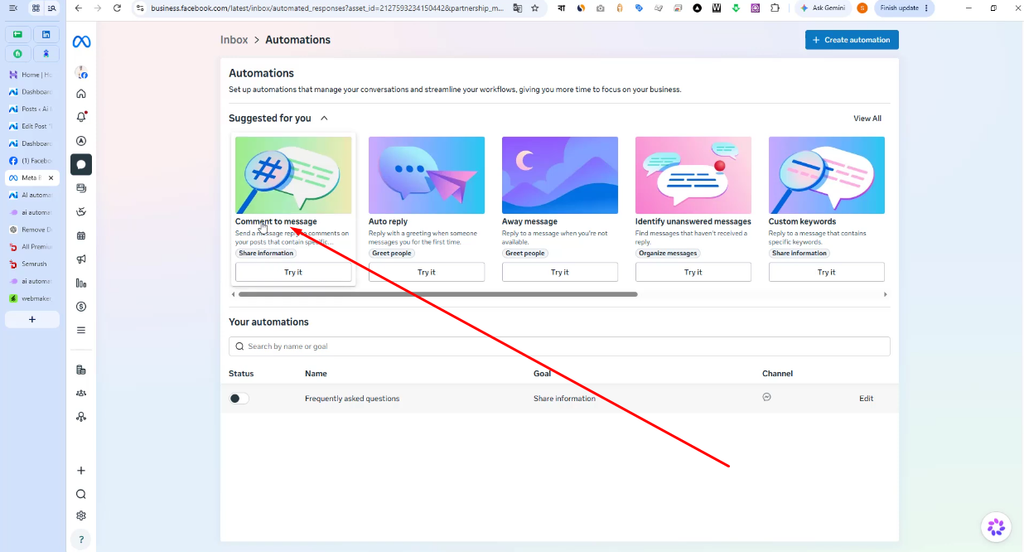
2. Navigate to Automations: Look for the “Automations” button (usually represented by a sparkle or a robot icon) at the top of the Inbox page.
3. Create a Custom Automation: While there are several pre-made options, you’ll want to select “Create Automation” to build something tailored to your specific keywords.
4. Define Your Trigger: Choose the option that allows the automation to trigger based on specific keywords in a comment.
5. Enter Your Keywords: Type in the words you want the system to watch for. Be sure to include common misspellings or variations. For example, if you’re selling a course, use “Course,” “Info,” and “Details.”
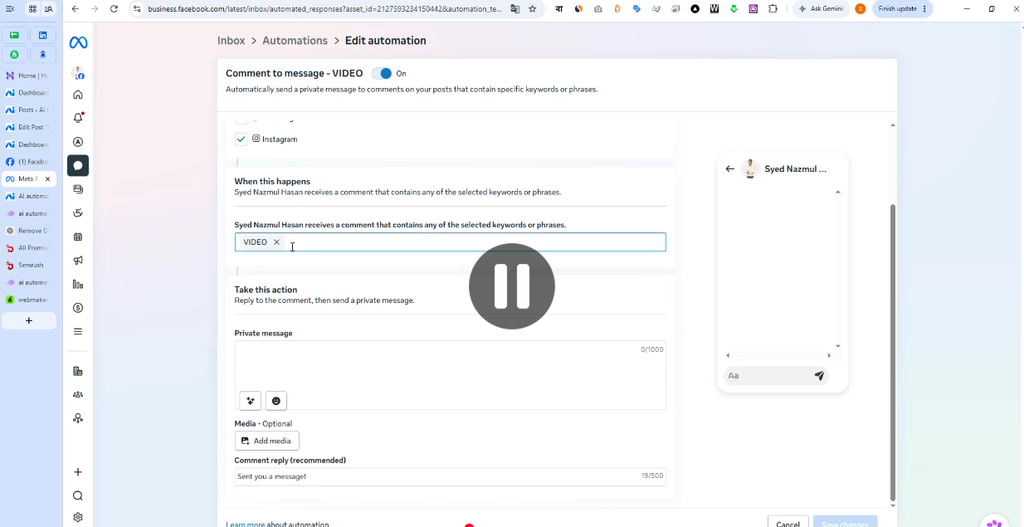
6. Write Your Response: This is where you add your warmth. Write a friendly message that answers the question and directs the user to the next step.
7. Save and Test: Hit save, then grab a friend’s phone or use a second account to comment on your post and make sure it works.
High-Intent Keywords to Target
Broad keywords (like “hello” or “the”) cause accidental triggers. Focus your automations on high-conversion terms:
| Category | High-Intent Keywords | Goal |
| Pricing | Price, Cost, Rate, How much | Immediate conversion / sales lead |
| Direct Access | Link, URL, Website, Shop | Traffic routing |
| Interest | Info, Details, Interested, Send | Mid-funnel lead nurturing |
| Support | Location, Hours, Address | Quick informational resolution |
Best Practices for Human-Sounding Automations
The biggest risk with automation is sounding like a cold machine. If your replies are too stiff, people will feel like they’re talking to a wall. To keep things cozy and welcoming, try these tips:
Use Emojis Sparingly but Effectively
A well-placed smiley face or a wave emoji can soften the tone of a message. It tells the reader that there’s a person behind the brand.
Keep it Conversational
Instead of saying, “The requested link is provided below,” try something like, “Hey there! You can find all those details right here: [Link].” It feels less like a transaction and more like a chat.
Include a Call to Action
Don’t just give the answer; give them a direction. If you’ve sent them a link to a product, ask them if they have any other questions or tell them to let you know how they like the item once it arrives.
Enhancing Your Workflow with Writing Assistants
When you’re setting up dozens of these replies, you might find yourself hitting a creative wall. This is where a good writing tool comes in handy. While the delivery is automated, the thought behind the words shouldn’t be.
Many people use an AI writing assistant to brainstorm five or six different ways to say the same thing. This allows you to rotate your responses so your comment section doesn’t look like a row of identical clones.
If you find yourself struggling to sound natural, consider these writing techniques:
Read it out loud: If you wouldn’t say it to a friend over lunch, don’t put it in your auto-reply.
Focus on the benefit: Instead of saying “Our guide has 10 pages,” say “You’ll learn exactly how to save time in our 10-page guide.”
* Keep it brief: People skim on social media. Get to the point quickly.
Common Mistakes to Avoid
Even with a great tool, it’s easy to trip up. Avoid these common pitfalls to keep your page healthy.
The “Set it and Forget it” Trap
Your business evolves, and so should your replies. If you change your pricing or update your website link, remember to update your keyword automations. There’s nothing more frustrating for a customer than getting an automated link that leads to a “404 Page Not Found” error.
Over-Automating
Automation is a tool, not a replacement for community. If someone leaves a heartfelt comment about how your product changed their life, don’t respond with a generic “Thanks for your interest!” Give that person a real, manual reply.
Using Only One Keyword
People type differently. Some might say “How much?” while others ask “Price?”. Make sure your trigger list is comprehensive enough to catch the different ways people ask for the same thing.
Expanding Your Toolset for Better Text
Once you’ve mastered the basics of Meta Business Suite, you might want to make your brand’s presence more visually appealing. While the auto-reply handles the text, the way you present your brand across other posts matters too.
Some creators use a text effects generator or a specialized typing tool to create eye-catching captions that stop the scroll. Whether it’s using an AI typography effects tool to make a headline pop or using a writing tool to sharpen their hooks, the goal is always the same: capturing attention long enough for the user to leave that “keyword” comment.
By combining great visuals with a seamless, automated response system, you create a “conversion loop.” The visual grabs them, the caption prompts the keyword, and the auto-reply delivers the value.
Frequently Asked Questions
Will using auto-replies get my account banned?
No, as long as you’re using the official Meta Business Suite tools. Meta provides these features specifically to help businesses manage their communities. Just avoid sending the exact same link hundreds of times in a few seconds to different people via DM, as that can sometimes trigger spam filters.
Can I use keywords for Instagram too?
Yes! Since Meta Business Suite connects both Facebook and Instagram, you can set up similar automation flows for your Instagram Professional accounts.
Does the auto-reply happen in the public comments or in a private message?
You can usually configure both. Most businesses prefer to acknowledge the comment publicly (to show others they are responsive) and then send the detailed information or link via a private message (to start a one-on-one sales conversation).
What happens if a user uses two different keywords in one comment?
Typically, the system will trigger the first keyword it recognizes. It won’t send five different replies to one comment, so you don’t have to worry about spamming your own followers.
Finishing Touches for Your Page
Setting up your Facebook comment keyword auto reply via Meta Business Suite is like prepping your ingredients before you start cooking. It takes a little bit of time upfront, but it makes the actual process smooth, stress-free, and far more enjoyable.
The goal isn’t to remove the human element from your business—it’s to remove the boring, repetitive parts so you have more energy for the real human connections. Start with three to five of your most common questions, set up your triggers, and watch how much more time you have in your day.
